What Is Technical SEO? How to Check and Improve Your Site
Learn what technical SEO is, why it matters, and how to check your site's crawling, indexing, structure, HTTPS, speed and WordPress settings.
On this page
Technical SEO at a Glance: Components and Recommended Setup
| Technical SEO component | Recommended setup or status |
|---|---|
| Website structure and internal links | Important pages grouped by topic, reachable through useful menus or contextual links; no valuable page unintentionally orphaned. |
| Crawl access (robots.txt) | Important public URLs can be crawled. Restrictions are deliberate; do not change robots.txt merely because it exists. |
| XML sitemap | Opens correctly and lists preferred, useful, live URLs; Google Search Console can fetch it. |
| Indexability | Priority public pages have no accidental noindex. Check Google Search Console; indexing is not guaranteed. |
| Canonical URLs | Internal links, sitemaps and canonical signals consistently indicate the intended representative URL. |
| HTTP responses and redirects | Working pages normally return 200; permanent moves use relevant redirects; genuinely missing pages may return 404/410. |
| Core Web Vitals | At the 75th percentile of real visits, aim for LCP ≤ 2.5 s, INP ≤ 200 ms, CLS ≤ 0.1. |
| Mobile experience | Essential content is available on mobile; menus, links, images and tables remain easy to use. |
| HTTPS and SSL/TLS | A valid certificate, working https:// pages and no important insecure resources breaking the page. |
| Structured data (schema) | Accurately describes visible content; no invalid markup for Google-supported rich-result features in use. |
| Advanced technical SEO | Check JavaScript rendering, crawl budget, language versions or migration redirects only when the site has those requirements. |
Use this table as a quick reference, not as a to-do list of settings that must be changed. In the walkthrough below, you will learn what each component does, when it deserves attention, and how to check or improve it.
Suppose you publish a useful article about choosing a laptop for college. It answers the reader’s questions, but the article never appears in Google Search. You might assume the article needs better keywords or more backlinks. Yet the real problem could be a WordPress setting that tells Google not to index the page.
Technical SEO helps you find and fix problems like this. It covers how search engines discover and access pages, which URLs can be indexed, and whether the website works well for visitors. Begin by checking the important pages and correcting only settings that cause real problems.
This practical technical SEO guide explains each component in a useful order: what it does, why it matters, when to check it and how to fix a real problem. If you need a specific answer, use the table of contents to jump to that section.
1. What Is Technical SEO, and Why Is It Important?
Technical SEO means improving a website’s underlying setup so search engines can discover, crawl, process and potentially index its important pages. Google’s minimum technical requirements outline the basic conditions for indexing eligibility; meeting them does not guarantee indexing or rankings.
Here is the process in brief. Googlebot is Google’s crawler: software that discovers URLs and requests their content. Google may then analyze the page and add information about it to its index, the database used for search. When someone searches, Google’s ranking systems evaluate which eligible pages best meet the person’s needs. Googlebot itself does not decide the rankings.
Technical SEO matters because a page can be excellent yet fail before it gets the opportunity to rank. For example:
- Google cannot find the page because no other page on the site links to it.
- A noindex setting tells Google not to include it in search results.
- An old URL leads to an error instead of the new address.
- A script fails, leaving essential content missing when Google processes the page.
For a fuller explanation of how Google processes and ranks pages, see ToolQuo’s What Is SEO? guide.
1.1 On-page, off-page and technical SEO work together
SEO is usually discussed in three complementary areas: on-page SEO, off-page SEO and technical SEO. Each addresses a different reason a useful page might struggle to reach the right audience.
On-page SEO improves what an individual page says and how clearly it says it: useful explanations, headings, titles, images and relevant internal links. Read our On-Page SEO guide.
Off-page SEO concerns recognition outside your website, including genuinely earned backlinks and editorial mentions. A college blog linking to your laptop guide is an example. Read our Off-Page SEO guide.
Technical SEO addresses the website’s ability to deliver that guide properly to search engines and visitors. Removing an accidental noindex directive or fixing a broken URL belongs here.
These three areas complement one another. A technically accessible article may still rank poorly if it is unhelpful. Excellent writing and independent recommendations may have little effect if the intended URL cannot be indexed. This article focuses on the technical foundation.
2. Website Structure and Internal Links: Make Important Pages Easy to Find
Website structure describes how the pages on your site are organized and linked. When Googlebot follows a link from your homepage to a category and then an article, those links help it discover the article. The same route helps a visitor find it. Clear structure therefore supports both crawling and navigation.
2.1 What constitutes a good website structure?
A good structure has three features:
Imagine a laptop-review website. Its menu contains “Buying Guides,” “Laptop Reviews” and “Maintenance.” Under Buying Guides, readers find “Student Laptops.” That page links to “Best Laptops for Engineering Students” and “How Much RAM Does a Student Need?”
This works because a visitor knows which area to explore and what each link promises. A bad structure might place all these articles in an uncategorized list or rely on the site’s search box to find them.
A practical aim is to make major pages reachable in a few sensible clicks from a relevant starting point. One or two clicks can be a useful goal for high-priority pages, but there is no universal Google rule that every page must be within two clicks.
2.2 How to improve your website structure
Start with your five most useful articles or service pages.
- Open your homepage in a private browser window. Look at the visible menu and main category links.
- For each important page, ask: which category would a reader naturally look under? Is that category easy to find?
- Open a related article. Would a link to your important page genuinely help someone reading it? If yes, add a short contextual link.
- Check where the links go. They should open the intended page, not an error or an unrelated redirect.
- If several articles cover one subject, consider creating a useful overview or category page that introduces and links to them.
For example, “How to Choose a Laptop for College” could introduce price, RAM and battery life, then link naturally to separate articles covering each. That creates a practical route through the topic rather than a random collection of backlinks to yourself.
2.3 What is an orphan page, and why fix it?
A page is called an orphan page if no other crawlable page on your website links to it.
Suppose you publish /laptop-battery-guide/ but forget to link to it from any category or article. Google might still find it through your sitemap or an external backlink (a link from another website), but readers browsing your site have no obvious way to reach it.
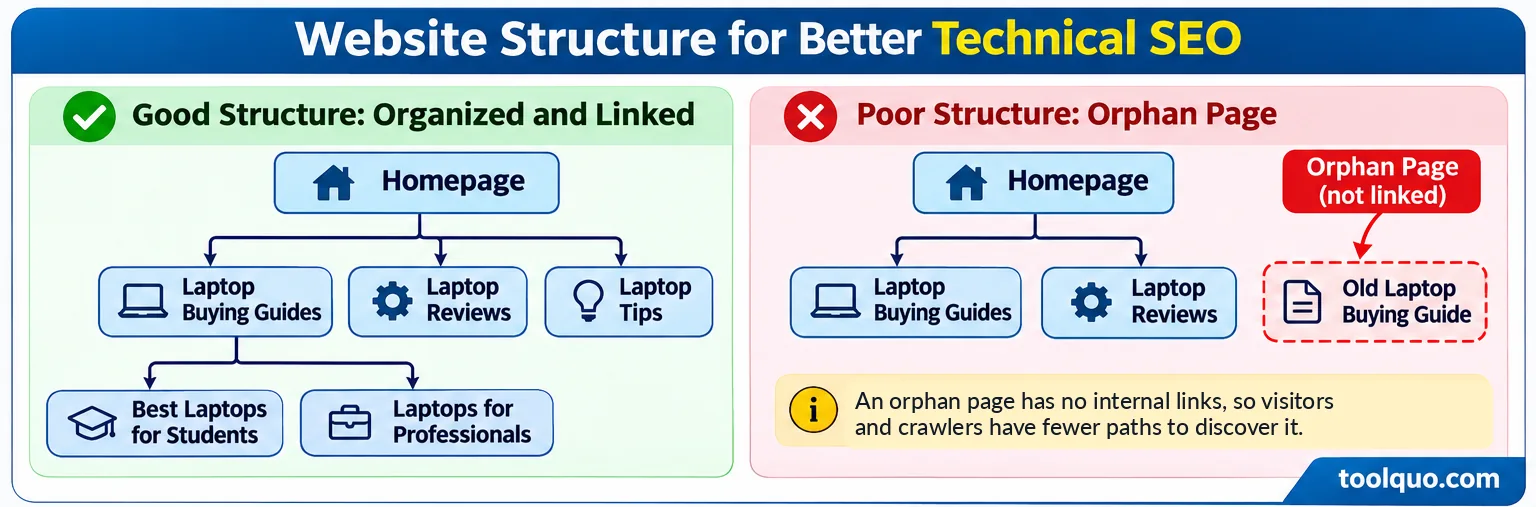
Give important public articles a clear route from relevant parts of your site. For example, link your battery guide from the Student Laptops category and from a related buying guide where battery life is discussed. This helps readers discover the article and provides Googlebot with an internal link to follow.
If you manage only a few dozen important articles, checking internal links manually may be enough. Larger sites can use a crawler such as Screaming Frog to identify pages that appear in a sitemap but have no internal links.
2.4 URLs and breadcrumbs
A URL is a webpage’s address. Descriptive addresses such as /student-laptop-guide/ help people recognize the destination. Breadcrumbs are navigation links often shown above an article, for example Home > Buying Guides > Student Laptops. They tell readers which section they are in and let them return to broader pages. This also supports an understandable internal linking structure.
Use readable URLs for new pages. For old pages, do not change URLs only to make them shorter. A change can break bookmarks and existing links unless you redirect the old address correctly. We explain redirects in Section 6.
3. Crawlability: Can Googlebot Access Your Pages?
Finding a link is only the beginning. Googlebot must also be allowed to request the page. This is called crawlability.
Imagine a school library whose catalogue lists a book but whose reading room is locked. Google knowing a URL exists is like seeing it in the catalogue; crawling is like being able to open the book.
Two common technical SEO tools in this area are robots.txt and XML sitemaps. They are not interchangeable: robots.txt controls crawling permissions, while a sitemap helps Google discover URLs.
3.1 Robots.txt: what it does and how to read it
Robots.txt is a plain text file containing instructions for automated crawlers. Usually it is available at the root of your site: https://example.com/robots.txt. Compliant crawlers read the rules to learn which paths they may request.
A simple example:
“User-agent: *” means the rule addresses all crawlers that respect it. “Disallow: /private-reports/” asks those crawlers not to fetch URLs whose paths begin with /private-reports/. It does NOT block the whole website.
A risky example is “Disallow: /” under the all-crawlers group. It asks those crawlers not to request any URL path on that host. That may be deliberate on a testing website but is usually wrong for a public blog.
- Only if you have a reason to investigate crawl access, open your domain followed by /robots.txt, such as https://example.com/robots.txt. A normal blog does not need to edit this file routinely.
- Read the User-agent and Disallow lines. A file may contain several groups, so look at rules that apply to Googlebot.
- Check whether a rule covers the path of an important public page. For example, Disallow: /blog/ could prevent crawling /blog/laptop-guide/.
- To verify a specific URL, open Google Search Console, choose your website property, and paste the complete page address into the “Inspect any URL” bar at the top. The indexing information or live test can help identify crawl-access problems.
Keep robots.txt rules that correctly restrict administrative or utility URLs. Normal WordPress installations may use rules to discourage crawling of administrative or utility paths. If Search Console shows no important crawl restriction, beginners usually need no intervention. If a specific page is blocked unexpectedly, identify the matching rule before editing it.
3.2 XML sitemaps: what Google should discover
A sitemap is a file listing URLs you want search engines to know about. An XML sitemap is written for machines, so its content looks more technical than a normal webpage.
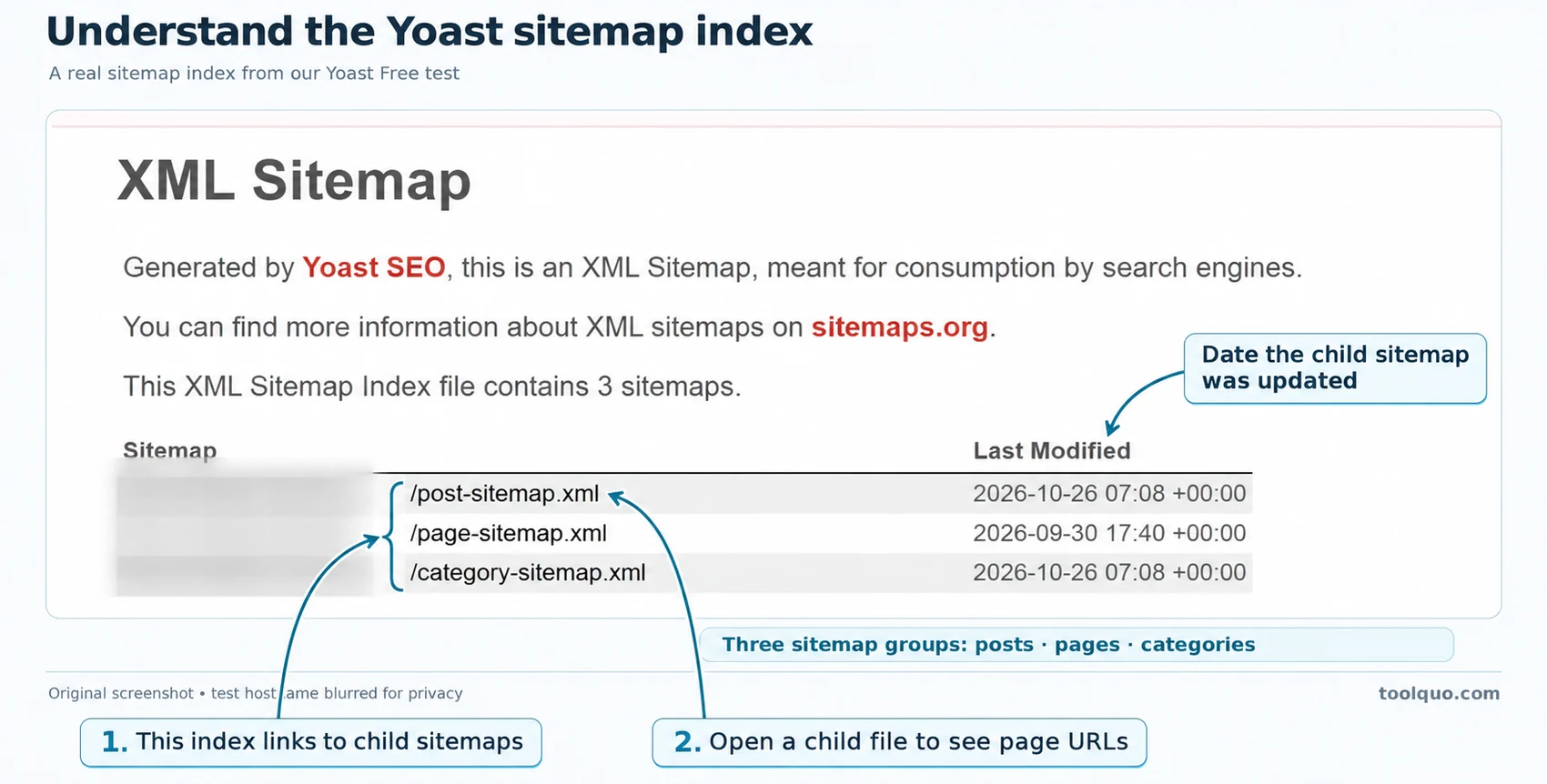
For example, a sitemap might list:
https://example.com/
https://example.com/student-laptop-guide/
https://example.com/laptop-battery-guide/
For a typical blog, the ideal sitemap includes useful, live, preferred URLs. It generally should not list URLs that return 404, merely redirect to another page, or are intentionally noindex. A sitemap does not force indexing.
- Find your sitemap address. Rank Math and Yoast commonly generate /sitemap_index.xml; WordPress has a built-in sitemap at /wp-sitemap.xml. Use the sitemap produced by your active setup. If your SEO plugin manages sitemaps, start with its sitemap settings or the sitemap link shown there.
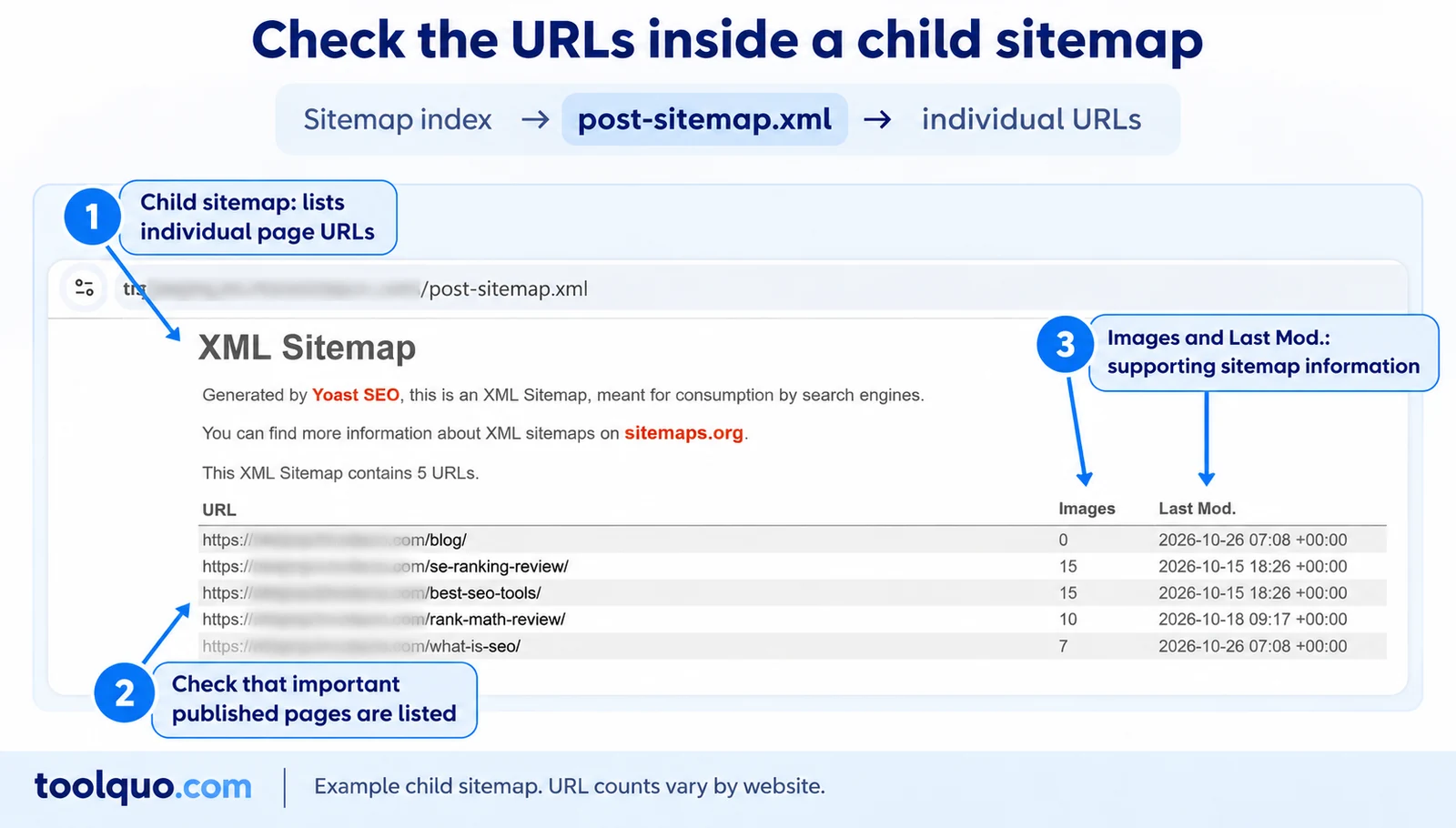
- Open the sitemap address. If it is a sitemap index, click a child sitemap (for example, a post sitemap) to see actual URLs. It is not enough to see that the file exists.
- Confirm that two or three important public articles appear with the right https:// URLs. Look for obvious errors: old URLs that redirect, deleted pages, staging addresses or private pages. The sitemap should list the preferred live versions, not every URL ever created.
- In Google Search Console, select your property → Indexing → Sitemaps. Check that the correct sitemap is submitted and that its status indicates Google could fetch it. An error there may point to a bad address or a server issue.
- To check whether Google indexed an individual article, open Google Search Console, select your website, and paste the complete article URL into the inspection field at the top. Sitemap success alone cannot tell you whether a specific page has been indexed.
If your sitemap is empty or inaccessible, check whether an SEO plugin or WordPress is generating it correctly. If it lists the wrong URLs, review which post types and pages the generator includes rather than editing the XML by hand. For a more detailed WordPress example, see our Yoast SEO sitemap walkthrough with genuine screenshots.
We have now checked whether Google can find and fetch a page. The next question is different: is Google allowed to include that page in its search index?
4. Indexability: Which Pages Should Appear in Google?
A crawler being able to open your page does not mean Google will add it to search results. Indexability is about whether a page is eligible for Google’s index.
An index is like a searchable catalogue. If an article is absent from that catalogue, Google normally cannot show it as an ordinary search result. Google can decide not to index a page for several reasons. One important reason you can directly control is a noindex directive.
4.1 What is noindex? When should you use it?
Noindex is an instruction that tells supporting search engines not to include a page in their search results. Your website can send it as a robots meta tag or as an HTTP header. In WordPress, a general-purpose SEO plugin often provides a page-level setting to control it.
Example: your public “Student Laptop Buying Guide” should generally be eligible for indexing. A private test page or a site’s internal search results page may have no reason to appear in Google.
4.2 How to see whether Google has indexed an article
For a website you own, start with Google Search Console, Google’s free service for understanding how Google Search sees your site. You must first verify that you own or manage the website; then select its property from the upper-left menu.
- Open Google Search Console and select the website property at the upper left.
- At the top of the screen, find the URL Inspection field, commonly labeled “Inspect any URL in [your property].”
- Paste the complete address of one article, including https://, and press Enter.
- Read the main verdict, such as “URL is on Google” or “URL is not on Google.” Open the “Page indexing” section below it. For a page that is not indexed, look for the stated reason, such as “Excluded by ‘noindex’ tag” or “Blocked by robots.txt.” The wording and available fields can vary.
- If you have just fixed the page, choose “Test live URL” to check whether the current version can be accessed. This is different from the stored indexing report, which reflects Google’s last recorded processing.
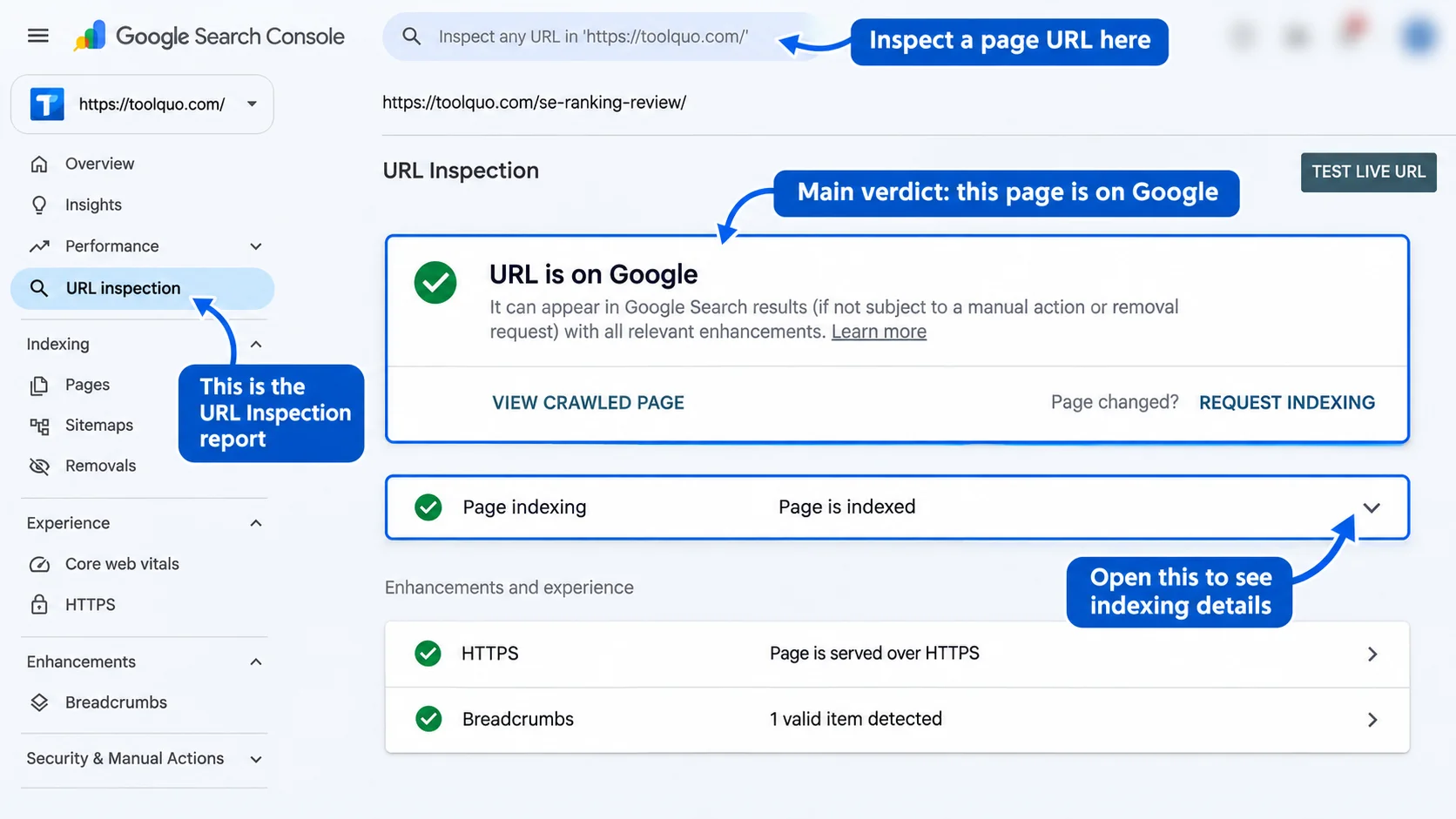
If the page is indexed, it still might rank poorly. You should then examine content relevance, demand and competition, not assume an indexing fault.
4.3 What should you do when a page is not indexed?
Before changing anything, read the specific reason shown in Google Search Console → URL Inspection → Page indexing. This section tells you why Google has not indexed the inspected URL, if a reason is available. Choose a fix based on that report, not a generic SEO score.
| Status shown in Search Console | What it means and what to check |
|---|---|
| Excluded by ‘noindex’ tag | Google found a noindex instruction. For an important public article, check its WordPress SEO plugin’s robots setting. Remove the instruction only if unintended, then retest. |
| Blocked by robots.txt | Googlebot cannot crawl the URL under the applicable rule. Check the specific rule in Section 3.1; correct it if the public article should be accessible. |
| Discovered – currently not indexed | Google knows the URL but has not crawled it. Check useful internal links, sitemap inclusion and server access. A new page may simply need time. |
| Crawled – currently not indexed | Google visited the page but did not index it. Review content usefulness, duplication and canonical selection. There is no universal one-click fix. |
If you make a real correction to an important URL, you can use URL Inspection → Request indexing, when the tool offers the option. Repeated requests do not compel Google to index it.
5. Canonical URLs: Which Version of a Page Should Google Use?
A website can have different addresses that show the same or nearly the same content. For example, a blog may have both:
https://example.com/student-laptop-guide/
https://example.com/student-laptop-guide/?utm_source=newsletter
The second address includes a tracking parameter, but both show the same article. Without clear signals, Google must decide which URL best represents it in search.
The canonical URL is the representative URL Google selects from that group. Your website can suggest a preference using a canonical tag. The usual preference in this example is the clean URL without the tracking parameter.
This matters because you generally want search visitors to land on the right version, and because inconsistent URL signals create unnecessary confusion. However, duplicate versions are not automatically evidence of a Google penalty.
5.1 What does a good canonical setup look like?
For a normal article, aim for one clear preferred URL. Use that address in your internal links and XML sitemap. A self-referencing canonical tag on the preferred page can reinforce the choice. When alternative versions genuinely need to remain accessible, they can point to the preferred version through an appropriate canonical signal.
How to check without inspecting code:
- Open Google Search Console and inspect your important page’s full URL.
- Expand “Page indexing.” Look for “User-declared canonical” and “Google-selected canonical” if Google provides them.
- Compare the addresses. If Google selected a different URL, open both. Are they actually the same article? Is the selected version preferable for readers?
- Check whether your website’s links and sitemap use your intended address. Correct inconsistencies if Google’s selection is causing a genuine problem.
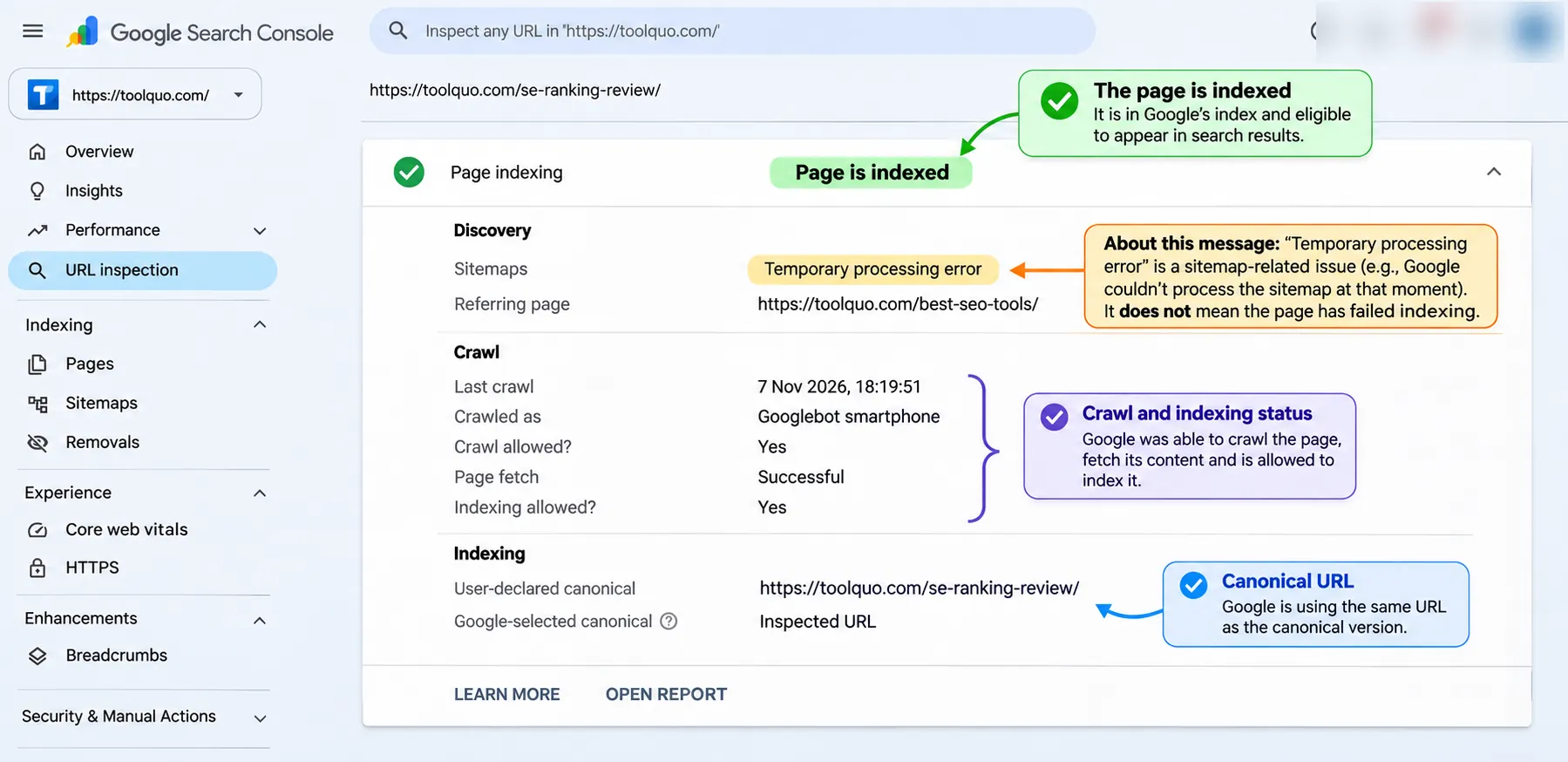
Google considers a canonical tag a signal, not an absolute instruction. Do not change a perfectly good page simply because an alternative URL appears in a report.
5.2 Canonical, redirect and noindex: three different jobs
Choose the method based on what should happen when someone opens the URL:
| Situation | Choose this—and why |
|---|---|
| Two accessible URLs show substantially the same article | Canonical tag: suggest which version Google should represent in search. Visitors can still open either URL. |
| An article has permanently moved to a new address | 301 redirect: send visitors and crawlers from the old address to the relevant replacement. |
| A page should not appear in search results | Noindex: tell supporting search engines to exclude that page, such as an internal utility page. |
6. HTTP Responses, Broken Pages and Redirects
When someone opens a webpage, their browser requests it from the website’s server. The server returns a response, including an HTTP status code. This code tells browsers and crawlers whether the request succeeded, moved elsewhere or failed.
A broken article, an unnecessary redirect chain or a server error can interrupt Googlebot’s visit and frustrate readers. Correct responses help crawlers and visitors reach the content you intended.
6.1 What should an ordinary visitor or website owner look for?
For most beginners, the useful test is simple: does the page open, redirect to the correct replacement, or show an error? The server also sends an HTTP status code to explain that outcome to browsers and search engines. Here are the main ones worth recognizing:
| Response | What a beginner should understand |
|---|---|
| 200 OK | The page opens normally. This is the expected response for a published article. |
| 301 permanent redirect | An old URL sends the visitor to its relevant replacement after a permanent move. |
| 404 Not Found | The URL no longer has a page. This may be correct if the content was removed with no suitable replacement. |
| 5xx server error | The server cannot deliver the page. Persistent failures on important URLs need investigation. |
Other codes exist: 302 signals a temporary redirect and 410 explicitly signals removed content. You need not memorize these to perform basic checks. The next section focuses on what visitors experience.
6.2 When should you check, and how?
Check a URL when readers report a broken page, Google Search Console reports a server or redirect problem, or you have recently changed a permalink, domain or website structure. For a normal article that loads correctly and has no reported issue, routine status-code testing is unnecessary. When you do have a reason to investigate, start with what the visitor sees:
- Open the exact URL in a private browser window. Check whether it loads, shows an error or sends you elsewhere.
- If it was recently renamed, open the old address too. Does it lead to the genuinely relevant new page?
- For an important URL that does not behave correctly, inspect it in Google Search Console. The indexing report may reveal a redirect or error affecting Google.
- Only when you need the exact status code, use a trusted HTTP status checker. More advanced readers can use Chrome → F12 → Network → Reload → main document → Headers → Status Code. This is optional; most beginners can first test whether the page opens or redirects to the right destination.
For instance, you changed your permalink from /best-laptops-2026/ to /best-student-laptops/. The old address should generally take visitors directly to the replacement. If it now returns 404, add an appropriate permanent redirect through your site’s redirect tool or server configuration and update internal links.
Why not redirect every missing page to the homepage? A visitor seeking a discontinued product would be confused by an unrelated homepage. If there is no reasonable replacement, a genuine 404 is better.
6.3 What is a soft 404?
A soft 404 is a page that looks missing or empty to Google but does not provide a proper missing-page response.
Example: an old product URL displays only “Product unavailable,” but the server returns 200, telling a crawler it successfully supplied a normal page. Google may classify it as a soft 404.
What to do: if the page should exist, restore useful content; if the content moved, redirect to the relevant replacement; if it was removed without replacement, return an appropriate 404 or 410.
Do not treat every 404 as an emergency. Start with broken links on your website and old URLs people actually use.
7. Website Speed and Core Web Vitals
| Metric | What it measures | Good result |
|---|---|---|
| LCP | Main content appears | ≤ 2.5 seconds |
| INP | Page responds to clicks or taps | ≤ 200 ms |
| CLS | Page stays visually stable | ≤ 0.1 |
A page that takes too long to display its main content or respond to clicks frustrates visitors. Performance belongs in technical SEO because it concerns how the website delivers and displays content, not the wording of the article.
Google uses Core Web Vitals as part of its page-experience considerations, but passing a speed test does not guarantee higher rankings.
7.1 Three metrics in plain English
These thresholds refer to the 75th percentile of recorded visits. One slow test on your own laptop does not establish what all visitors experience.
7.2 How to test your site and choose a fix
- Open PageSpeed Insights at pagespeed.web.dev.
- Paste the full URL of an important article and click Analyze.
- Look at the mobile report first. If real-user data is available, check whether its Core Web Vitals assessment passes. This is different from the simulated Lighthouse score below it.
- Identify the failing metric and read the diagnostics before changing settings.
Suppose LCP is poor and the diagnostics show that your featured image is the largest element. Resize it to a sensible display size, compress it, deliver an efficient format such as WebP, and avoid delaying an image that is immediately visible.
Suppose CLS is poor because an embedded video pushes the text down after loading. Reserve an appropriately sized area for that embed so the page does not unexpectedly shift.
Suppose INP is poor and clicking the menu feels delayed. Investigate unnecessary JavaScript and heavy interactive features, perhaps with developer help.
8. Mobile SEO and HTTPS: Make the Page Usable and Secure
After measuring speed, check whether visitors can comfortably use your website on a phone. The important text should appear promptly, menus should respond when tapped and tables should remain readable. Google generally uses the mobile version of pages for indexing, so content hidden on mobile can also become a search problem.
8.1 What should a good mobile page look like?
It should show the important information available on desktop, use readable text, and have navigation and buttons that work without overlapping. A long comparison table may scroll horizontally within its own container, but the whole article should not require constant side-to-side scrolling.
Example: your desktop laptop guide includes a table comparing five models. On a phone the table disappears because the theme hides it. Readers lose the comparison, and the version Google processes may be missing valuable content.
How to check:
- Open your homepage and two important articles on a phone, not only a desktop browser.
- Check the menu, headings, images, buttons and any comparison tables.
- Confirm that key explanations are visible, not removed to make the page shorter.
- If something is missing, inspect the theme’s mobile settings or ask a developer to correct the template. Do not delete useful information to improve a mobile score.
8.2 HTTPS and SSL certificates: why they matter and how to get one
In HTTPS, the “S” stands for “Secure.” Unlike HTTP, HTTPS encrypts the connection between a visitor’s browser and your website using TLS. An SSL/TLS certificate helps the browser establish that secure connection and verify the site’s domain; “SSL certificate” is the familiar term, although modern encryption uses TLS.
For example, HTTPS helps protect a password entered on your website while it travels across the network. From a technical SEO perspective, Google uses HTTPS as a lightweight ranking signal, and consistent HTTPS URLs help avoid competing HTTP and HTTPS versions. It is worthwhile to configure correctly, but it does not replace relevant content or other SEO work.
Do not change domain or WordPress URL settings blindly while installing a certificate: an incorrect setting can make your site inaccessible. Your hosting provider’s HTTPS setup instructions are the safest starting point.
9. Structured Data: Help Search Engines Interpret Page Details
Structured data, often called schema markup, is information added to a page in a format machines can read. It describes facts already present in the visible content.
Imagine a recipe article that shows ingredients, preparation time and cooking time. Suitable Recipe markup can describe these details in a consistent way. On a blog, Article, BreadcrumbList or Organization markup may be more relevant, depending on the page.
Schema markup helps search engines recognize specific facts on a page by labeling them consistently in machine-readable form. For example, Recipe markup can identify ingredients and cooking time. Appropriate markup can make a page eligible for certain enhanced search appearances, but it does not automatically improve rankings or guarantee a rich result.
- Open Google’s Rich Results Test.
- Enter the full URL of a published page.
- Review which supported structured data types were detected, and whether the tool reports errors.
- If there is an error, check whether the marked-up information is present and accurate on the page. For example, do not claim a review rating that visitors cannot actually see.
WordPress plugins such as Rank Math and Yoast can generate markup automatically. Do not install extra schema plugins simply because a test lists fewer types than you expected. Use markup that genuinely describes your content; some valid schema types do not produce special Google rich results.
Now that we have covered the main components, it is useful to see how to check their settings on a typical WordPress site.
10. Technical SEO for WordPress: The Settings That Matter
WordPress makes many technical SEO tasks manageable without writing code. However, the plugin screen shows intended settings; you should also verify what the live website sends to Google.
10.1 Check that the public site is not discouraged from indexing
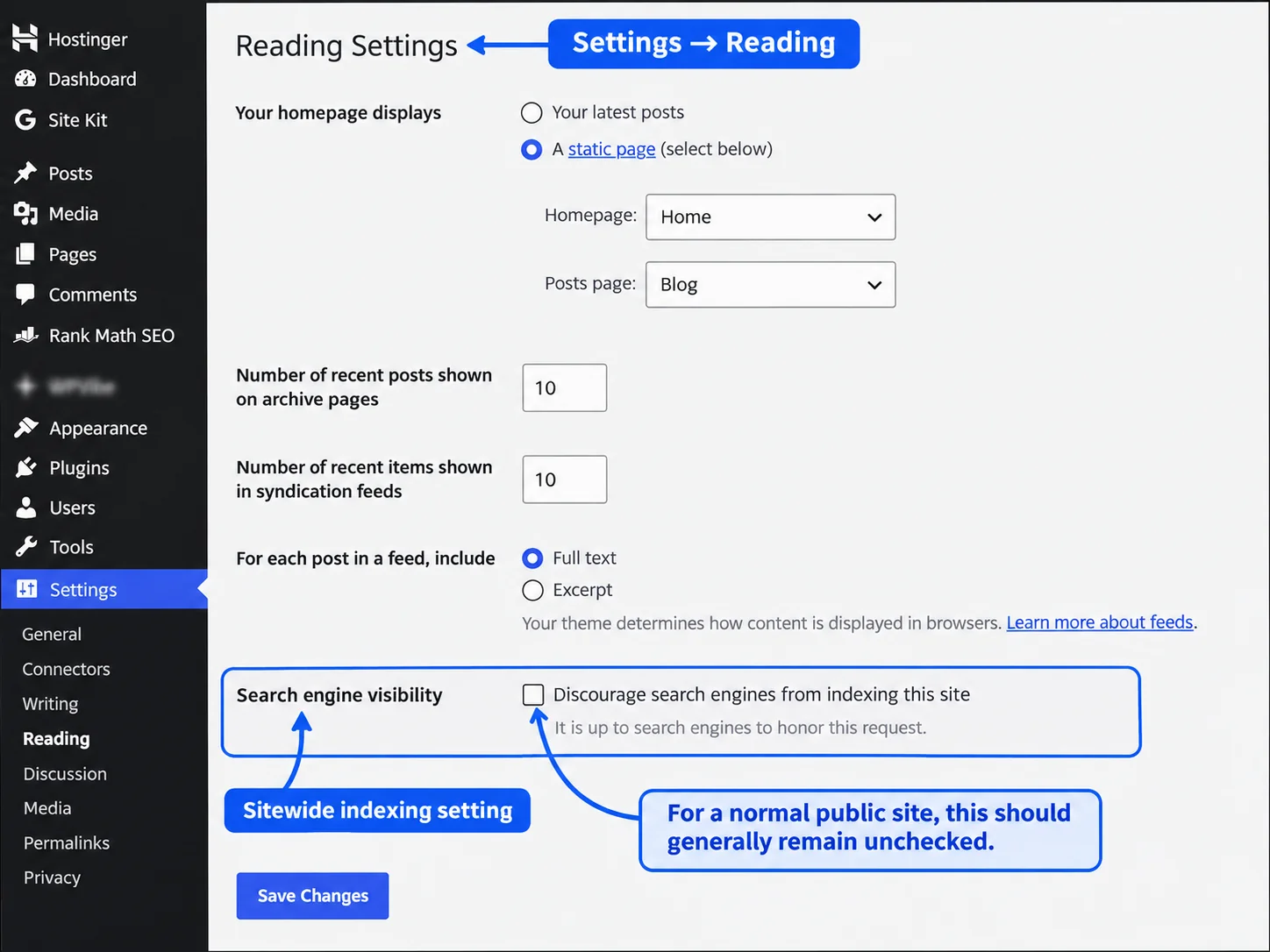
10.2 Check the page’s individual SEO settings
Open a published article in the WordPress editor. In your active SEO plugin, find the Advanced or Robots options for that article. Check whether the page is allowed to appear in search results and whether it declares the intended canonical URL.

The exact menu labels vary by plugin version. Do not activate a second all-purpose SEO plugin alongside the existing one simply to access a setting. Overlapping plugins can generate conflicting metadata.
For a detailed walkthrough of the plugin interface, see our How to Use Rank Math SEO guide and our How to Use Yoast SEO guide. Here, the important lesson is to verify the resulting public page using Google Search Console, not merely to trust a checkbox.
10.3 Check what your sitemap actually contains
If you need to adjust which WordPress content appears in the sitemap, open your active SEO plugin’s sitemap settings. Posts and useful public pages generally belong there; decide individually whether category, tag or author archives add real value. If the existing sitemap already includes the intended pages and Google fetches it, there may be nothing to change.
For example, a “Laptop Buying Guides” category page with an introduction and a useful list of articles may help readers. An empty tag archive with one automatically generated link may add little.
After changing the setting, reopen the sitemap and sample pages to confirm the live output. Clear relevant caches if necessary, then check again.
10.4 After a theme, plugin or URL change
After a theme, plugin or URL change, the content may be unchanged while the website delivers different menus, redirects or indexing instructions. If you’re considering a plugin switch, our Rank Math vs Yoast comparison explains the relevant technical-feature differences.
After updating a theme or plugin, or changing URLs, the website may output different navigation, redirects or indexing instructions even if the article text is unchanged. Retest a few representative pages: the homepage, an important article and a category page. Check navigation, the mobile view, indexability, sitemap URLs and redirects.
11. How to Conduct a Technical SEO Audit: A Beginner’s Workflow
A small site may need this audit when important pages are missing from search, following major site changes or as a periodic health check. Do not treat it as a daily obligation or assume every reported warning needs a fix.
A technical SEO audit is a systematic check of whether important pages are accessible, indexable and usable. You do not need a paid crawler for a useful first audit. Begin with five pages: the homepage, two valuable articles, one category page and one page you suspect has a problem. To compare free crawlers and other audit tools, see our SEO tools guide.
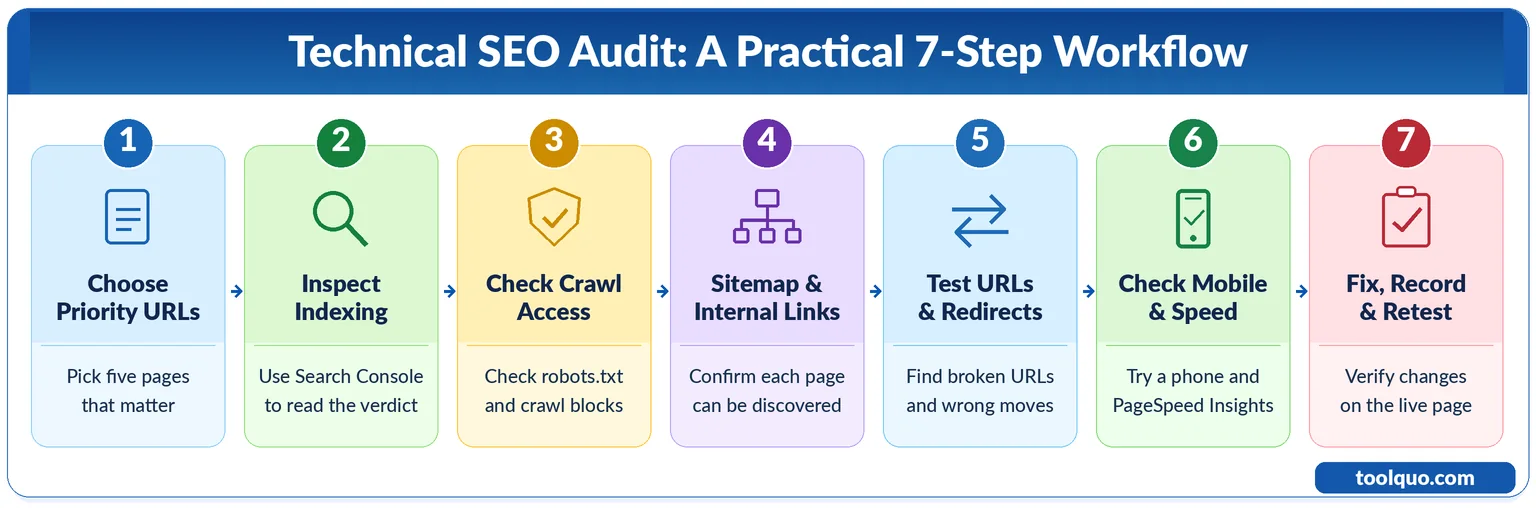
Step 1 — Write down the intended result.
For each URL, note whether you want it to appear in Google. For example, the public laptop guide: yes; a private test page: no. Without this decision, a report cannot tell you whether exclusion is a mistake.
Step 2 — Inspect indexing.
Open Google Search Console, choose your verified website and paste each complete URL into the URL Inspection bar at the top. Record the indexing verdict and the reason if the page is not indexed. If Google selected another canonical, note that address.
Step 3 — Check crawl access.
For any important page reporting a crawl problem, open the site’s robots.txt and examine applicable Disallow rules. Check that the public page is not blocked by a login or a security system. If you are unsure about a rule, test the specific URL before editing it.
Step 4 — Check discovery routes.
Open the XML sitemap. Verify that the correct public URL is included where appropriate. Then visit your site like a reader and follow links from a relevant category or article. Add a natural internal link if an important page has no useful route.
Step 5 — Check old URLs and errors.
Test important links and any recently renamed pages. Does the old address lead to the right replacement? Does a working page load correctly? Fix broken internal links and redirects that affect actual readers.
Step 6 — Check mobile experience and page speed.
Open two representative pages on a phone. Run them through PageSpeed Insights. Fix actual broken layouts or poor metrics on important page templates before worrying about minor diagnostic warnings.
Step 7 — Record the issue, fix and proof.
Prioritize high-impact errors, not a high error count. An accidental noindex instruction on a valuable article is urgent; a 404 from a random mistyped URL often is not. A useful audit ends with a short, evidence-based action list.
12. Advanced Technical SEO: Which Websites Need More?
The basics above apply to most websites. Some technical problems are more common when the site is large, heavily interactive or multilingual.
JavaScript rendering: If your page loads its main article or products through JavaScript, Google may need to render that code to see the content. For example, if a product list remains blank when a script fails, important content could be unavailable. Use Search Console’s live test and “View tested page” to examine rendered output. A developer may compare the initial HTML with the rendered page. A standard WordPress blog usually does not need to redesign its architecture for this.
Crawl budget: This concerns how much crawling Google can and wants to do on a site. It can matter to very large sites with huge numbers of URLs, especially stores generating filter combinations. A small blog should generally fix inaccessible or unlinked pages before worrying about crawl-budget optimization.
Faceted navigation: A shop may generate separate URLs for every combination of brand, size and color. These variations can create many near-duplicates. Decide which filtered results genuinely deserve their own search pages; handle the rest with a clear sitewide plan rather than blocking every filter blindly.
Server logs: A server log records incoming requests and their responses. Large-site owners can inspect logs to see whether crawlers repeatedly hit errors or waste requests on obsolete URLs. Beginners can usually start with Google Search Console’s Crawl Stats instead.
Hreflang: If your site offers separate language or regional versions, hreflang annotations help Google identify the alternatives. A single-language blog generally does not need them. Check that the pages really are localized and that the annotations correctly reference the alternatives.
Website migrations: If you move domains or change many URLs, map each important old address to a relevant new one. Test redirects, indexing settings, canonical tags, internal links and sitemap URLs before and after launch. Do not make unnecessary URL changes at the same time as a redesign.
AI search: Accessible, useful content and a clear site structure remain important. Google does not require an llms.txt file or special “AI schema” for its AI search features. Treat claims of guaranteed AI visibility from a plugin setting with caution.
13. Common Questions About Technical SEO
Do I need to code? Not for the first checks. WordPress, Google Search Console and PageSpeed Insights cover many beginner tasks. Complex rendering or server issues may require a developer.
Is technical SEO the same as on-page SEO? No. On-page SEO mainly improves the page’s content and presentation; technical SEO checks how the site delivers, connects and processes pages. They overlap in areas such as internal linking.
Will fixing technical SEO guarantee better rankings? No. It can remove problems that prevent crawling, indexing or comfortable use. Google’s ranking systems still consider the relevance and usefulness of the content.
How often should I check? Review Search Console periodically and test representative pages after important theme, plugin, hosting or URL changes. Large websites may need more regular audits.
Does every page need to be indexed? No. Index useful public destinations. Treat private, duplicate and utility pages according to their purpose, rather than automatically indexing everything.
14. A Practical Technical SEO Checklist
Use this checklist when you first set up your site, after major changes or when investigating a real problem. A check does not always imply a change.
- My most important pages are reachable from relevant menus, categories or articles.
- The site’s robots.txt does not accidentally block those pages.
- The XML sitemap loads and lists the correct live, preferred URLs.
- Google Search Console does not report an unintended noindex on my priority pages.
- When duplicate URLs exist, my preferred version is clear and consistent.
- Old URLs that genuinely moved lead to suitable new pages.
- Important pages work on phones, load reasonably and use valid HTTPS.
- Structured data, when used, matches the visible content.
- After a change, I check the live output instead of relying only on a plugin score.
The goal of technical SEO is not a perfect audit dashboard. It is a website whose useful pages can be found, understood and used without avoidable technical barriers. Investigate when something is wrong, fix verified problems and let helpful content and legitimate off-page recognition work alongside the technical foundation.
About the author
Nikhil Bhardwaj
Founder & Editor, Toolquo
Nikhil leads Toolquo’s editorial direction, focusing on practical software research, transparent comparisons, and clear buying decisions.
View author profile →Keep exploring
Related guides
November 7, 2026
Rank Math vs Yoast SEO (2027): Which WordPress SEO Plugin Is Better?
Compare Rank Math and Yoast for on-page SEO, technical SEO, readability, redirects and growing a WordPress…
November 3, 2026
Yoast SEO Sitemap: How to Find, Configure and Fix Errors (2027)
Find your Yoast SEO sitemap, choose which URLs belong in it, submit it to Google Search…
November 1, 2026
How to Use Yoast SEO: Complete Beginner’s Guide (2027)
Learn how to install and configure Yoast SEO, choose WordPress SEO settings, optimize a post, and…